

Getting Started
Last Updated: Version R2510RICOH Intelligent Agent (herein called RICOH IA) automates the process of extracting data from digital documents (like text files, emails, and PDFs) and physical paperwork and organizes it into destinations and workflows. RICOH IA can integrate with AI solutions such as Natif AI and Azure AI to automatically extract, validate, or tag data in identified formats.
The access level assigned to your user account determines what you can and cannot see in the user interface. The screen capture below is labeled to show all areas of the program, and the table below describes what you will see.
You can view Tasks by Job Function to view the tasks that apply specifically to your role and assigned tasks within the system.
If you click a component that you have not been granted access to, you will receive an error message.
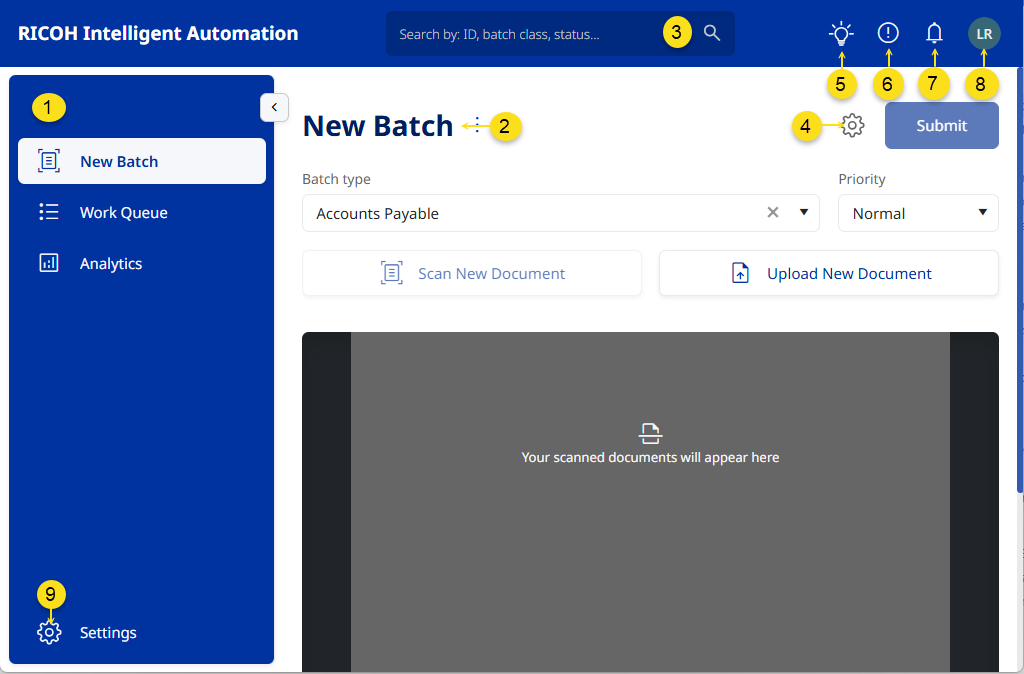
| Area | Description |
|---|---|
 Batch Processing View Batch Processing View |
Click one of these options to load it as the Current View. You can select New Batch, Work Queue or Analytics, but access to these views depends on the access role that you've been assigned. |
 Current View Current View |
The Current View can be New Batch, Work Queue or Analytics. |
 Search Search |
Use the search function to locate a specific batch class, status, ID, etc. |
 Scanner Settings Scanner Settings |
This option is located on the New Batch screen, and provides the ability to connect a scanner, configure scanner settings, and also configure separation settings. |
 Link to Ideas Portal Link to Ideas Portal |
Click this link if you have a AHA Ideas portal account and you want to add a suggestion to improve the RICOH IA program. |
 Link to Online Help Link to Online Help |
Opens this knowledge base that you are currently viewing. |
 Notifications Notifications |
The Bell icon appears on the New Batch and Work Queue screens. If you click the Bell , you can view all notifications that have been sent to your user account. Although notifications are sent via email, this option provides a full list of your notifications. Notifications are triggered based on SLA threshold settings configured by the Designer per Batch Type. |
 User Profile User Profile |
Provides a submenu to access your account Preferences and to logout of RICOH IA. |
 Settings Settings |
Opens the configuration screen where Administrators, Designers, and AI Model Creators can perform tasks to setup the entire RICOH IA system. |