Customize the Work Queue
Last Updated: Version R2510The appearance of the Work Queue is fully customized. Use the topics listed below to understand the customizations that may best suit your workflow.
Work Queue Filters
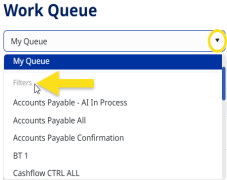
After a batch is submitted, it is added to the Work Queue. The appearance of the Work Queue depends on if the Designer has created a Work Queue Filter and assigned to your User ID (or to a User Group your are part of). Drop-down the Work Queue list to view any created filters. These filters alter the contents of the Work Queue based on the Batch type, stage, SLA status and priority set by the Designer. The columns that appear in the queue are also pre-defined. However, if you select My Queue, the Work Queue will contain ALL batch types that you are assigned to, regardless of filters.
Filter Based on Status
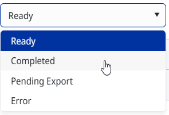
The status list, located beside the Work Queue list, allows you to further filter the Work Queue based on if the batch is in Ready, Completed, Pending Export, or Error Status.
-
Ready status includes a batch is waiting for a review, validation, or confirmation stage.
-
Completed status includes the batches that you have scanned and submitted from the New Batch screen.
-
Error status shows the batches that were not completed due to an error. Note that this status is only available to users with Administrator or Designer access level.
Sort and Change the Work Queue Columns
The Gear button is available to customize the columns that appear in the Work Queue. Click the Gear button, and then select Columns. Those columns that are currently displayed in the queue are checked. Select or Deselect as many columns as necessary.
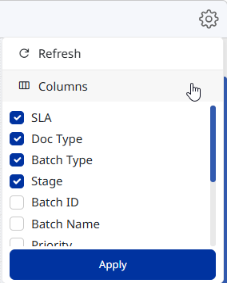
To modify the order of the columns, drag and drop the column header left or right to a new location.
Use Quick View
This feature allows you to view the first few pages of a document without fully opening the whole document. This is useful for obtaining a quick glance at a document before committing to a deeper dive with the View button.
View Batch Details
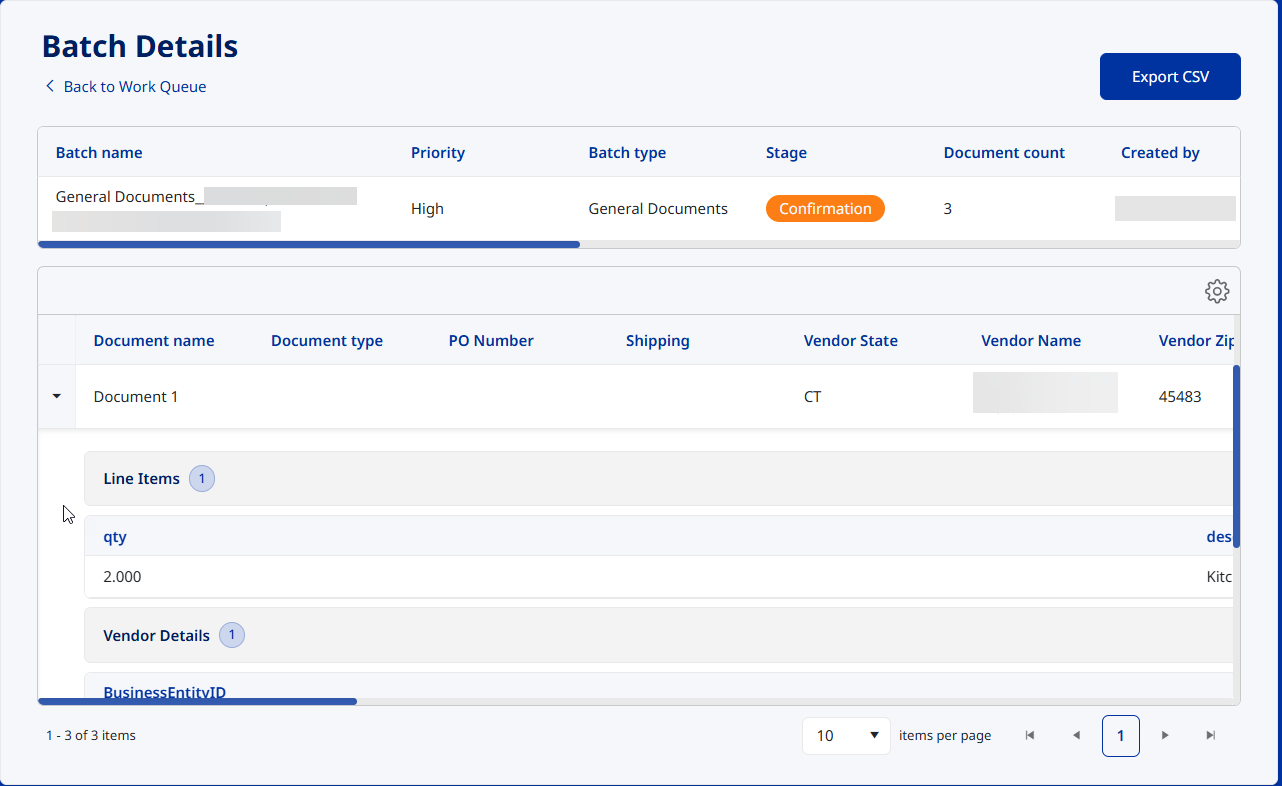
To view detailed information about the batch, click the ellipses button on the batch row, and choose Details from the submenu.
This screen lists the batch name, priority setting, all batch fields and other batch details. You can click the down arrow located beside each document in the batch to view full document details.
View the Batch History
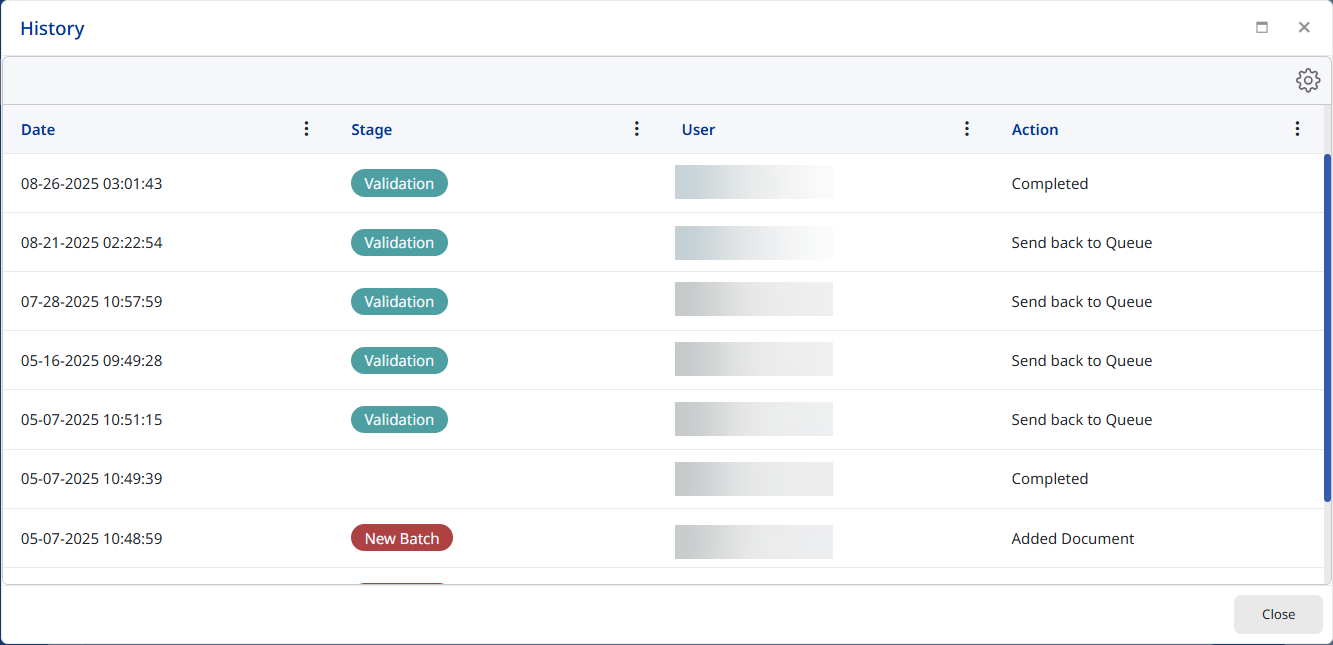
The batch history provides the date, stage, User responsible, and the action taken for the selected batch.