

Start a New Batch
Last Updated: Version R2510When you first access RICOH IA, you arrive at the New Batch screen by default. However, depending on your responsibilities within RICOH IA, you can change your profile settings to view the Work Queue screen instead when you first login.
If using a scanner, you must install the TWAIN driver and connect the scanner to the workstation before proceeding. Refer to Scanner Settings for instructions.
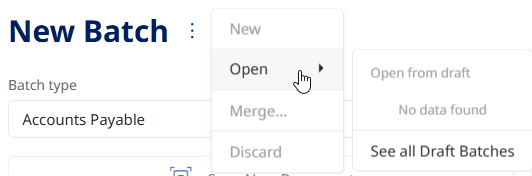
From the New Batch screen, you can either start a new batch or edit any draft batches that you saved but did not submit. As shown in the screen capture below, to see your draft batches you can click the Ellipses button beside New Batch, and choose Open, and then Open from draft or See all Draft Batch from the menu.
. 
The clip below instructions demonstrates how to start a new batch, and then how to view a submitted batch in the Work Queue.
-
Begin by selecting the Batch Type. Your Administrator has likely assigned you to specific Batch Types, and those assignments appear in the Batch type list.
-
Select a priority - high, normal, or low. By default, the priority is set to High. This setting determines the priority that will be set for the batch within the Work Queue. If the batch contains a review, confirmation or validation step, a higher priority will place it at the top of the queue.
-
Click either Scan New Document or Upload New Document. Scan New Document is only available if a scanner is detected and connected to your device.
-
Upload New Document: Choose one or more documents from the local or network file system and then click Open to proceed.
Alternatively, click Upload from mobile to launch a QR code that can be scanned to pair a mobile device. Your computer and the mobile device MUST be on the same network to use this feature.
-
Scan New Document: If not predefined by the selected batch type, you may need to choose the Scanner Settings and Separation Settings BEFORE clicking the Scan Document button. Click the Gear icon
 to access these settings. In most cases, these setting may not be editable if the Designer has pre-set these options for the Batch type.
-
-
As the documents are processed, a progress indicator appears in the bottom right corner. As each document is complete, the status is updated to 'Completed'. You can click on a completed document to preview it on the screen and complete and verify the batch fields.
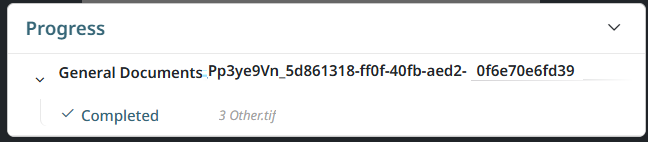
-
Click on one of the completed documents to load it in the New Batch screen.
Depending on the settings for this batch process flow, you may need to complete specified batch fields. In this example, the Operator must select a Location ID before the batch can be submitted.
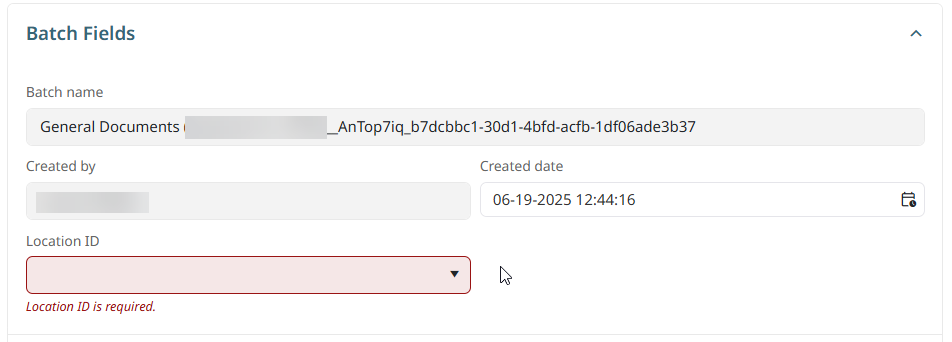
You can preview the scan for quality and formatting. The Ellipses menu
 provides options that you can access to correct problems. For example, a document may contain three pages that are portrait, but one that is landscape. You can select the landscape page and choose to rotate it if needed. Or, the scan may be acceptable quality for most pages, but not all pages. If an option on the menu is not enabled, that feature has not been enabled for this batch type.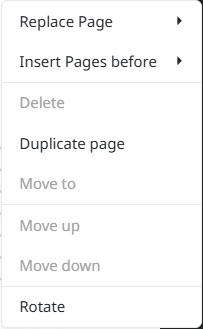
The Replace Pages and the Insert Pages options allow you to select either a scanner or an upload location to replace the current page.
When you start or open a batch, the batch is locked to all other users. If the batch is open without activity for 20 minutes, RICOH IA unlocks the batch after warning the current Operator about the inactivity.
-
Once all fields are complete or verified, click Submit to complete the batch.
The batch is added to the Work Queue. However, if the batch type process flow includes any review, verification or confirmation tasks, the task appears in the Work Queue as a separate entry based on the stage required. Users with appropriate group or batch type permissions can proceed to complete these tasks: