

Example: Barcode Separation
Last Updated: Version R2601The barcode handling feature allows for barcode reading, document separation, value extraction, and zone-based barcode location identification. These features support multiple barcode formats and provide configuration options for specifying barcode usage within RICOH IA.
If you are a Workflow Designer, browse to Settings ® Separation Profiles to configure these settings. Once the profile is saved, a Workflow Designer can use a profile within a Batch Type. Also refer to Process Flow Example: Zone Barcode Location Identification.
If you are an Operator, complete these instructions by clicking the Gear icon on the New Batch page, and then selecting the Document Separation tab.
Example 1: Document separation based on barcode type
Follow this example to separate a scan into multiple documents each time a specific barcode type is detected. For example, if you scan a 5 page document, and the selected barcode type is found for all 5 pages, 5 individual documents are created from the scan.
-
From the Document Separation Type list, select Barcode and Patch Code Separation.
-
Enable Barcode Separation.
-
From the Barcode Type list, select one type. Supported types are: Aztec, Codabar, Code 128, Code 39, Code 39 Full, Code 93, DataMatrix, EAN 13, EAN 8, Interleaved 2 of 5, Micro PDF 417, Micro QR Code, PDF 417, POSTNET, QR, UPC-A, UPC-E.
-
Optional: Enable the Barcode Checksum option if the barcode contains a first and last character identifier.
-
From the Start New Document When list, select Barcode Type Found.
-
Optional: Enable the Use Barcode Value for Document Type to assign a type to the document when a barcode values matches a document type name.
-
Optional: Enable Delete Barcode Separator Sheet to remove the separator sheet from the scan.
-
Click Saveand then start a new batch to use these settings.
Example 2: Document separation based on wildcard value
Follow this example to separate documents when a barcode value is identified, rather than just the barcode type. By using a wildcard value, you can set up a flexible configuration to identify and separate documents within a batch scan. The wildcard operators available are Equals, Not Equals, Contains, Not Contains, In, Not In, Starts With, Not Starts With, Ends With, Not Ends With, Match, or Not Match.
-
From the Document Separation Type list, select Barcode and Patch Code Separation.
-
Enable Barcode Separation.
-
From the Barcode Type list, select one type.
-
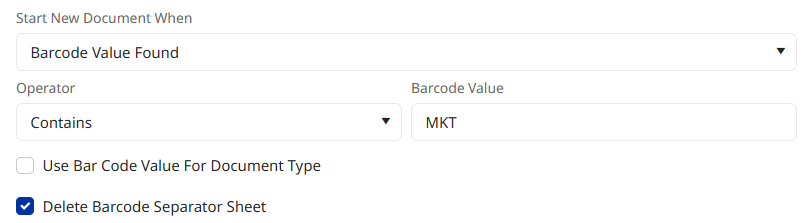
From the Start New Document When list, select Barcode Value Found.
-
Choose an option from the Operator list and then enter the corresponding data in the Barcode Value field. For example, if the barcode includes a department ID and you want to separate a scan based on the ID, you can select Contains, and then enter the department ID. Any time the batch process matches this ID, a new document is created within the scan. As an another example, this functionality could be used to identify client/matter details and then scan and route documents accordingly.
-
Optional: Enable the Use Barcode Value for Document Type to assign a type to the document when a barcode value matches a document type name.
-
Optional: Enable Delete Barcode Separator Sheet to remove the separator sheet from the scan.
-
Click Saveand then start a new batch to use these settings.