

Process Flow Example: Zone Barcode Location Identification
Last Updated: Version R2601The customer wants to detect a barcode, apply document batch separation and value extraction, and allow for zone barcode location identification on the page. The following configuration require a Designer to create a new batch type, and a new process flow within the batch type.
Before starting this configuration, prepare a sample document that you will need to upload to identify the zone on the document where the barcode will be read.
-
Choose Settings.
-
Choose Batch Type Library.
-
Click Create New Batch Type. Follow the instructions in Create a New Batch Type to complete the fields in the screen.
-
Click the Gear icon
 to open the Process Flow screen.
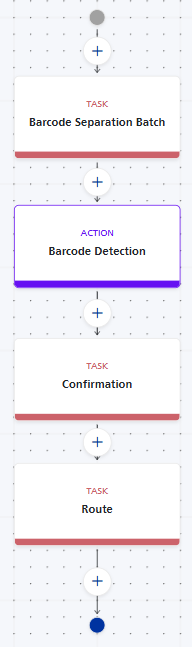
You must add a new batch task to the Process flow. The Action must follow a New Batch task in the Process Flow. The instructions below follow this rule.
-
Drag and drop an Action from the Steps to the + symbol after the New Batch Task.
-
Enter a name for this Action, for example "Detect Barcode".
-
From the Type list, select Detect Barcode.
-
Use the table below to complete the remaining fields.
Field Description Separation Type Choose either Document or Batch separation. Each time the barcode is identified, the separation is completed based on this setting. Barcode Type
Supported types are: Aztec, Codabar, Code 128, Code 39, Code 39 Full, Code 93, DataMatrix, EAN 13, EAN 8, Interleaved 2 of 5, Micro PDF 417, Micro QR Code, PDF 417, POSTNET, QR, UPC-A, UPC-E.
Barcode Check Sum Enable this option if the barcode contains a first and last character identifier. Start new Document When -
Barcode Type Found
-
Barcode Value Changes
-
Barcode Value Found
Use Bar Code Value For Document Type
Assign a type to the document when a barcode values matches a document type name.
Delete Barcode Separator Sheet
Removes the separator sheet from the scanned document(s).
-
-
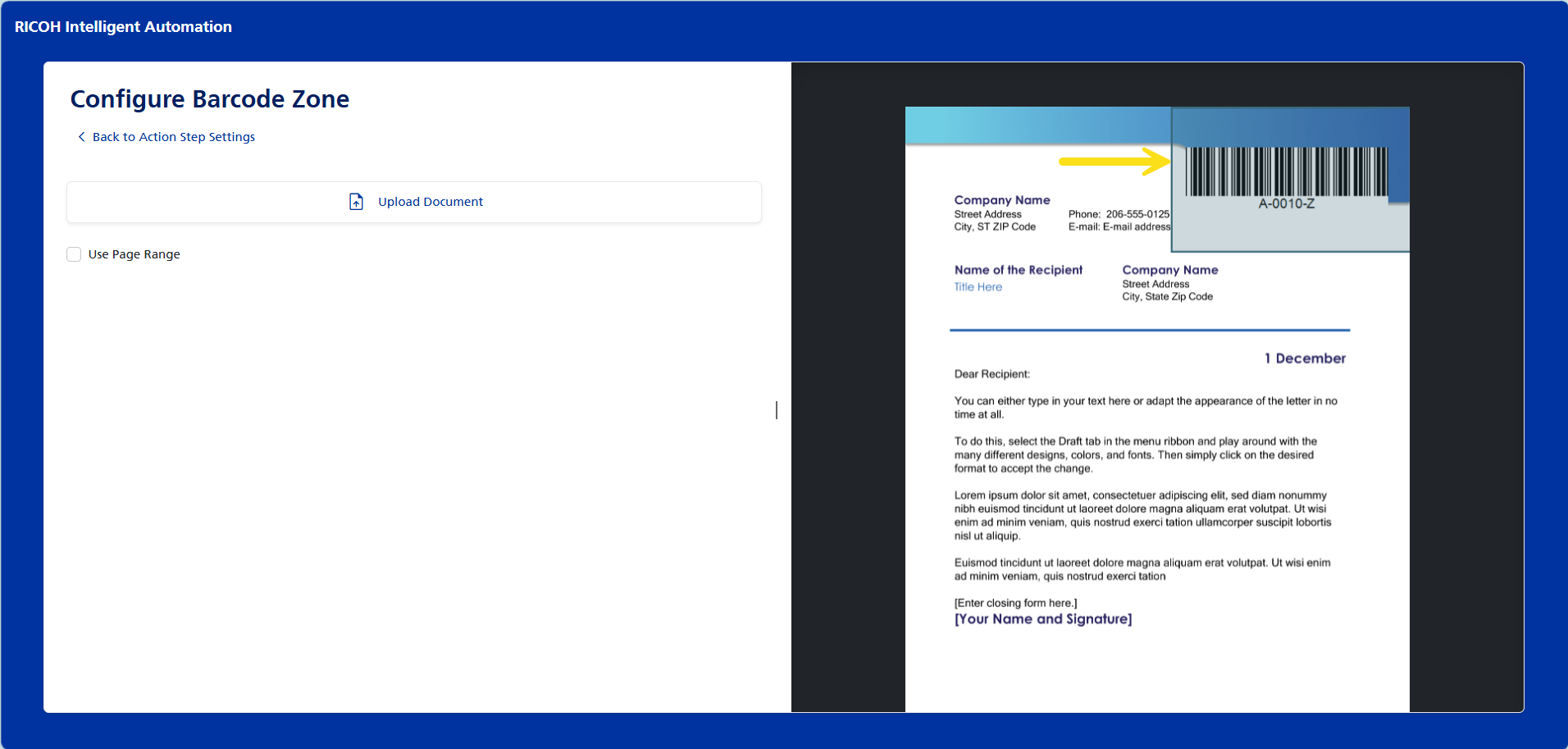
Click the Barcode Zone Identification Gear icon. A new screen opens to allow you to upload a document.
-
Click Upload Document and choose your sample document. Once the sample loads, draw a box around the location where the barcode will appear on screen.
If anticipating multipage documents, you can enable the Use Page Range checkbox, and then enter the starting and ending page for detecting barcodes within the designated zone.
-
Click the Back to Action Step Settings link to return the process flow configuration.
-
From the Values Extraction fields, select a Field or Variable combination, and then choose a corresponding Value. Define the values to be extracted from the barcode. The Field/Variable options are derived from all available document fields, batch fields, document variables or batch variables. In the value/Type of Barcode field, choose the value or type to be extracted from the barcode.
-
Complete the Process Flow by adding a Business Rule or Connector to route the documents based on the barcode identified. Click Save when finished. In this example, a confirmation task was added to the workflow to allow an Operator to verify the scanned documents, and a routing task was added to route the documents to a storage destination.
This action step will be applied when the Batch Type is run by an Operator.
From the Operator perspective, when the flow reaches a Detect Barcode action step, the system will automatically locate and use the barcode.