

Process Flow Example: SFTP Auto Import
Last Updated: Version R2601The customer wants to import of files from target SFTP folders, Designers can create a batch type that uses an Action step to initiate the batch. When polling occurs and one or more documents (that meet the import criteria) are located in the target SFTP folder (and optionally subfolders), the batch is automatically initiated.
Prior to configuring this process flow, the Designer must configure the following:
-
An SFTP integration to use within the process flow as the folder that will initiate the document import. Follow the instructions in SFTP to configure the specific SFTP host and root folder.
Follow these instructions to create a batch type that is automatically launched when a file is added or updated within the target SFTP folder.
-
Choose Settings.
-
Choose Batch Type Library.
-
Click Create New Batch Type. Follow the instructions in Create a New Batch Type to complete the fields in the screen. At a minimum, you need to enter a name for the batch type, and select the Batch naming variables.
-
Click the Gear icon
 to open the Process Flow screen.
 -
Drag and drop a Task from the Steps to the first + symbol.
-
In the Task screen, enter a name to identify this task. For example, 'Auto SFTP Batch'.
-
From the Type list, select Import.
-
From the Destination list, select SFTP, and then choose one pre-configured SFTP integration from the sublist.
RICOH IA loads the connection details for the selected SFTP configuration, and validates access.
Your current login must have permission to use this integration. If not, you will see an error message.
-
Click Select Folder to choose the root folder. This is the folder that will be monitored for files. Alternatively, you can manually enter the Folder path, but ensure that path is valid, and that you have read permissions on this folder.
If you do not specify a folder, the SFTP root folder will be used.
-
 To include subfolders, enable the checkbox. If a file is added to a subfolder (not just the root folder), the batch import will be initiated.
 -
Use the Max File Per Batch to limit the number of files imported into a single batch. For example, if 150 files are found (based on the polling interval), but you set the maximum to 50 files, 3 separate batches will be created on import (50 + 50 + 50).
-
Set the polling interval in minutes. RIA will attempt to communicate with the selected SFTP destination to check for files within the root or (optionally) subfolders. If you leave the interval empty, automatic polling and import will not occur.
-
In the File mask field, enter a pattern syntax that will be used to filter files by name patterns using wildcards. For example, if you enter '*.pdf', all PDF files will be imported. If you enter 'INV*.pdf', only PDF files that begin with INV will be imported. Leave this field blank if you want any file added to the root folder to be imported.
-
From the After Import Action field, choose what action to apply to the imported files once the import is complete.
-
If you choose Delete File, any file that was imported is deleted from the root folder.
-
If you choose Move File, any file that was imported will be move to the folder path that you identify.
-
-
Click OK to complete the Task step and return to the Process Flow.
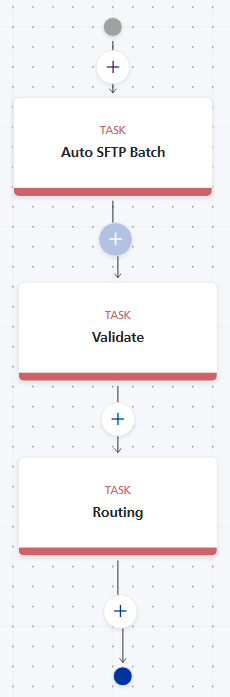
The example process flow shown here also includes steps for Validation, and a final task to route the document to a final destination.
From an Operator standpoint, this flow is initiated without manual intervention. Manual work is required only for the Validation step, added to the process flow to verify the imported documents only before the final routing can occur.