

Create a New Batch Type
Last Updated: Version R2601Only users with Designer access level can create or edit Batch Types. Prior to adding a new Batch Type in the Batch Type Library, review the requirements listed in Batch Type Elements.
If working with AI models, also see Example: Create a Batch Type with AI Data Extraction or Example: Create a Batch Type with AI Data Classification for instructions.
-
Choose Settings.
-
Choose Batch Type Library.
-
Click Create New Batch Type.
-
Enter a unique name for the Batch type.
-
Select a document priority. When filtering the Work Queue, this priority is used. High priority is listed first, followed by recent date/time.
-
Select a scan profile that was previously added in Create a Scan Profile.
-
Select a separation profile that was previously added in Create a Separation Profile.
Enable 'Allow to change profiles' to allow a user to change either the scan or separation profile after they choose this Batch type. If this option is not selected, the user will not be able to make nay changes to scan or separation settings.
-
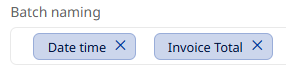
In the Batch naming field, establish a combination of system values, global or batch variables, business rules or batch fields to create a naming convention for scanned documents using this Batch Type. For example, you might select the 'Date time' and 'Batch type' system variables to form the name of the batch. Alternatively, you could select a combination of a global variable, plus a particular batch field to form the name. When the documents in the batch are submitted, this naming convention will be applied to the saved documents.
-
Click + Add User or Group to assign only specific users or groups of users to this Batch Type.
-
Use the information below to select Batch Field Settings, Documents in this Batch,Batch Variables, Batch Business Rules and the Process Flow.
-
When selections are completed, click Create Batch Type.
Batch Field Settings
| Field | Description |
|---|---|
| Display Name | The display name for this Batch field. |
| Required | When set to Required, the batch cannot be submitted until this field is completed. If set to Optional, the Operator does not need to complete the field. If set to Hidden, the field may be completed by a Business Rule and requires no input from the Operator. |
| Field Name | By default, the field name is duplicated from the Display name of the batch field. However, if you enable the Field Name option, you can enter a specific field name that differs from the Display name. |
| Data Type | Choose the type of data that this field will use: Text, Integer, Decimal, Currency, Boolean, Date time, Date, Time, List |
| Format | Choose the format that corresponds to the Data Type you selected. This field is only available if the Data type field requires a format selection. |
| Default value | Depending on the Data Type and Format selected, choose an option from the list. For example, if you selected Boolean as the Data type, you can select either True or False as the Default value. |
| Min length |
Set the minimum length for this field, depending on the type of field.
|
| Max length |
Set the maximum length for this field, depending on the type of field.
|
|
Data Source |
Select either Manual Entry or Auto Entry:
|
|
Data source value |
If Auto Entry was selected for the Data source, select a system value, global variable, batch variable, or batch business rule that the AI model will use as the data source. |
|
Read-only |
Enable this option if the field is populated by a Business Rule and does not require Operator input. |
|
Expressions |
If the value must match a specific format, you can create an expression. For example, if a PO number must start with AL, following by 6 digits, and ending with the letter m or x, the resulting expression would look as follows: Expression: ^AL\d{6}[mx]$ |
Documents in this Batch
Select the type of documents that will be scanned for this batch:
-
Manual Indexing: the Designer must choose specific fields, rejection reasons, etc,. for the Batch - Document Settings.
-
AI Model: After selecting an AI model (created in Add an AI Model to the Library), select Batch - Document Settings.
Batch Variables
Select one or more variables that will be used by this Batch.
-
System Variables: Options generated by the system are Created by, Created date, Last modified by, and Last modified date.
-
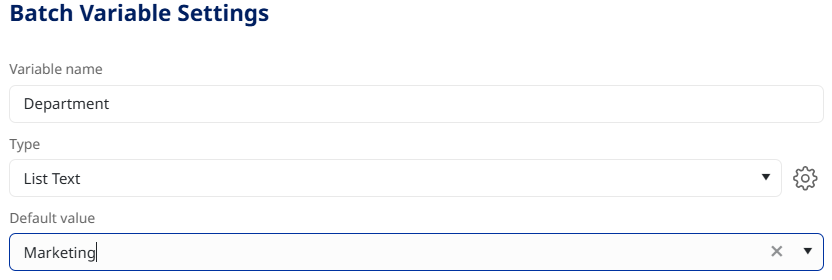
User Defined Variables: Define a custom variable. Enter a variable name, choose the type and then enter the default value for this variable. For example, if you want the Operator to pick from a list of Departments, you can create a "department" variable, and then set the Type to List Text. Click the gear symbol to add department names to the list. Select one of the department names as the Default value.
Batch Business Rules
Business rules allow you to apply calculations and logic to specific data fields.
| Rule | Example |
|---|---|
| Calculate Value | Perform a calculation. If a PO has been issued for $20K, and the current invoice amount is $12K, can the invoice be paid? |
| Calculate Duration Between Dates | Compare the invoice date to net payment terms. If the invoice date is June 1, the current date is July 30, and the net payment terms are 45 days, does the current date necessitate payment? |
| Convert Value | Convert an identified value from one format to another. You can select a System Value, Batch Field, Global or Batch Variable that you want to convert to a new value. If the date field appears on the document as yyyy/mm/dd, but the format required in the database is mm/dd/yyyy, use this rule to convert the value. |
| Execute Regular Expression |
If the rule must specifically match a particular format, create an expression. You can have the rule Check, Match, Replace, Extract, Split based on if the expression terms are met. You can also leave this expression blank to allow replacement with a space, for example. |
| Modify String |
Use this option to modify existing information. The source can be a System Value, Global Variable, Batch Field, Batch Variable, Batch Business Rule, Document Field, Document Variable, or Parameter. For example, you may need to extract the first characters of an invoice number, or replace a string of values. Alternatively, you could use replace characters with an empty string. |
|
Set Variable |
Set a Batch variable. See Batch Variables above. |
|
Set Field |
Can be Batch field only. See Batch Field Settings above. |
Process Flow
The Process Flow establishes the structure of the document flow through various system steps. Refer to Design a Process Flowfor instructions.