Create a Scan Profile
Last Updated: Version R2510Scanning Profiles provide designers with the ability to pre-define scanning profiles that will be used by the Operators. A scan profile consists of options such as scan resolution, single vs. duplex, color profile, and image enhancement options. By pre-defining these options into a profile, the Operator can select the scan profile rather than choosing settings each time.
Create a Scan Profile that is appropriate for each Batch Type. When creating a new batch type in the Batch Type Library, the Designer can select an appropriate Scan Profile per batch type.
-
From the bottom of the left menu, click Settings.
-
From the left menu, select Scanning Profiles.
-
Click Create New Profile.
-
Enter a unique scan profile name.
-
Choose the settings for this profile:
Setting Description Show Scanner's User Interface When enabled, the user can still view the scanning interface and can change the selection.
When disabled, the user will not be able to view scanning options, and these settings are applied to every scan.
Resolution Choose the dpi for the scan: 300, 450, 600. Sides Set the scan to single sided only or to duplex (double-sided). Color Set the scan to automatically detect color / no color, or select Black and White, Color, or Gray. Auto Crop Crops based on edge detection (white space). Auto Rotate Pages If OCR detects a page rotation anomaly, the page will be rotated to match the prevailing orientation. Blank Page Removal
Remove any detected blank pages from the scan.
Background Removal
Removed any background shading from the scan.
Deskew
If a scan is not fully straight, the page rotation is automatically adjusted to correct the deskew.
Despeckle
If a scan detects speckle on the pages, the despeckle is automatically removed.
-
Click Create New Profile.
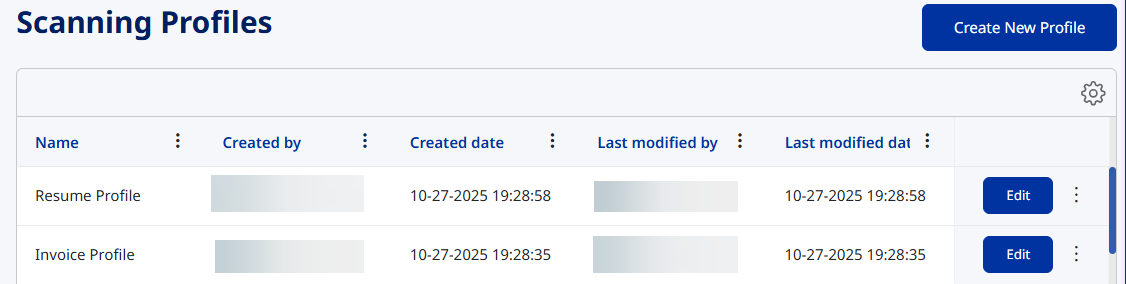
Once saved, the profile is listed in the Scanning Profiles screen. You can filter this list based on the following columns: Name, Created by, Created date, Last modified by and Last Modified date. Use the Edit option to make changes to a profile as needed. Any changes are reflected in the Last Modified by column.