Create a Separation Profile
Last Updated: Version R2510A Separation Profile provides Designers with the ability to pre-define the separation settings that will be assigned to a Batch Type. Separation types can be Manual, Barcode or Patch Code Separation, Page Count Separation, or AI Separation. These options are described in the table below.
Create a Separation Profile that is appropriate for each Batch Type. When creating a new batch type in the Batch Type Library, the Designer can select an appropriate Separation Profile per batch type.
-
From the bottom of the left menu, click Settings.
-
From the left menu, select Separation Profiles.
-
Click Create New Profile.
-
Enter a unique separation profile name.
-
Choose a Document Type Separation for the profile, as described in the table below.
-
Click Create New Profile.
| Document Separation Type | Description |
|---|---|
| Manual |
Allows the Operator to view the scanned document and determine where the page separation occurs. This separation can be accomplished in either the New Batch or the Review screens. |
| Barcode and Patch Code Separation |
Bar Code Separation:
Patch Code Separation:
|
| Page Count Separation | Separates the scan into distinct files when a set number of sheets is reached. For example, if you have a 25 page scan, the scan is separated into 5 documents, each containing 5 pages. |
| AI Separation | Select an AI model to perform the separation. |
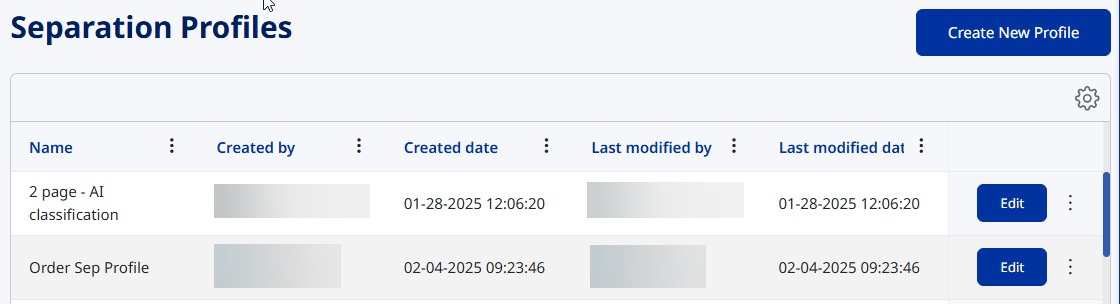
Once saved, the profile is listed in the Separation Profiles screen. You can filter this list based on the following columns: Name, Created by, Created date, Last modified by and Last Modified date. Use the Edit option to make changes to a profile as needed. Any changes are reflected in the Last Modified by and Last modified date columns.