

Example: Create a Batch Type with AI Data Extraction
Last Updated: Version R2510This example shows the end-to-process required to configure a batch type that extracts data based on a trained AI model. The example steps through the batch scan and extraction from an Operator viewpoint, and then demonstrates how you would view the extracted data.
Prerequisites
The following prerequisites must be completed to enable this example:
-
An Integration (Natif or Azure) has been added to RICOH IA.
-
An AI workflow for Data extraction has been added to RICOH IA.
-
A custom extraction AI workflow as been created and trained.
Only users with Designer access level can create or edit Batch Types.
Process
This example is completed in three steps. Follow the steps below in their entirety to create and verify the AI Data Extraction Batch Type.
2. Extract Data from a Document
1. Create the Batch Type
-
Choose Settings.
-
Choose Batch Type Library.
-
Click Create New Batch Type.
-
Enter a unique name in the Batch type name field.
-
In the Batch Naming field, click the + symbol to establish a combination of system values, global or batch variables, business rules or batch fields to create a naming convention for scanned documents using this Batch Type. For example, you might select the 'Date time' and 'Batch type' system variables to form the name of the batch.

-
Add the users who can use this Batch Type. Only users added here will be able to see the Batch Type in their New Batch screen.
Ensure you add yourself as a user - otherwise, you will not be able to test this Batch Type in Step 2 below.
-
Under 'Documents in this Batch', click Add Documentand then choose AI model from the sublist.
-
Choose the trained AI extraction model from the list. Note that only the AI Models (Natif and Azure) with Data Extraction types are displayed in the drop-down.
-
After you pick the model, the Document Settings screen opens.
Because you selected an AI Model, the Document Name, Extraction AI model, and Document fields are pre-configured, as shown below.

Fields retrieved from the AI have an AI tag. You can still delete or edit them if you like.
The Edit Layout allows you to rearrange how the fields will be displayed on the screen.
-
(Optional) You can add another Document Field (locate the +Add Document field option below the retrieved Document Fields). You can add a field that requires manual input and not AI input. This means the Operator, rather than the AI, must enter the value.
-
(Optional)You can edit a retrieved Document field by clicking on the Gear icon
 beside each individual field. The Batch Field Setting screen opens, and you can do the following:
-
Data Confirmation: When enabled, the document field will display in the confirmation stage, but cannot be edited.
-
Redact field: When enabled, the document field will be masked when displayed in the confirmation stage and cannot be edited.
-
Double blind keying: When enabled, the document field will be displayed in the confirmation stage. To confirm the document, you must input the same exact value that was submitted during the validation stage. If your input value does not match the validated value, then an error will display.
-
Always valid: When enabled, the document field's value will always be valid.
-
-
(Optional) Set the Confidence threshold. During the validation stage, if the confidence level provided by the AI is lower than the threshold you set here, the field will turn red. You must correct the value before you can validate the document.
-
(Optional) Ensure the Data source value came from the AI. By default, it will retrieve the correct value. Leave it as is if you want to use AI to display the extracted value.
-
Once all Document Settings are complete, click OK to close the screen and return to the Create New Batch Type screen.
-
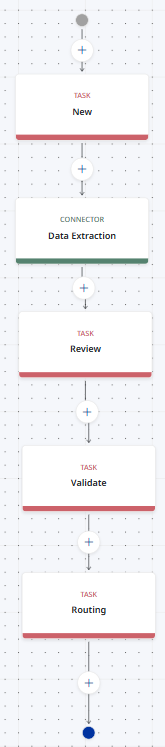
Under 'Process Flow', click anywhere in the Process Flow field to configure a flow. In the Configure Process Flow screen, you determine the stages the document will progress through.
Normally, the document progresses through the following stages: New Batch, Review, Validation, Confirmation, and Routing. However, this example focuses on using the Data extraction AI only. The flow should look like the example shown here to the right.
-
Drag the Task box to the first plus button and then input the following:
-
Name: "New"
-
Type: New Batch
-
Do not check 'Offline Scanning and Upload'. Checking this requires that you install a web scanning service on your PC. If checked without the web scanning, scanning a document to your batch will remain in processing status for a long time.
-
Documents Options: Check all of them.
-
Assigned users & group: Ensure you assign the correct users. If the user account is not assigned here, then the user cannot create a batch.
-
Click OK to close the Task.
-
-
Drag the Connector box to the plus button and input the following:
-
Name: Data Extraction
-
Service: Data Extraction
-
Click OK to close the Connector.
-
-
Drag another Task box to the plus button below the task you just created and input the following:
-
Name: "Review"
-
Type: Review
-
Documents Options: Check all of them.
-
Assigned users & group: Ensure you assign the correct users. If the user account is not assigned here, then the user cannot review the document.
-
Click OK to close the Task.
-
-
Drag another Task box to the plus button below the Connector you created and then input the following:
-
Name: "Validate"
-
Type: Validation
-
Documents Options: Check all of them.
-
Assigned users & group: Ensure you assign the correct users. If the user account is not assigned here, then the user cannot validate the document. For AI data extraction, this step is important because the extracted values are displayed on this stage. The user has the option to modify the data.
-
Click OK to close the Task.
-
-
(Optional - add only if you need a final Confirmation step) Drag the Task box to the plus button and input the following:
-
Name: "Confirm"
-
Type: Confirmation
-
Assigned users & group: Ensure you assign the correct users. If the user account is not assigned here, then the user cannot confirm the document.
-
Click OK to close the Task.
-
-
(Optional - add if routing documents to external storage). If you plan to route your documents to either OneDrive, AWS S3 Bucket, or SFTP, you can include a final routing step in the Process Flow. First, refer to Setup an Integration to establish the destination in RICOH IA. Then drag another Task box to the plus button at the end of the Process Flow. Input the following:
-
Name: Routing
-
Type: Routing
-
Destination: choose a pre-configured destination.
-
File Types: Limit the documents routed to one or more specific file type. PDF and TIFF - Saves only the scanned document. CSV, JSON, and XML - Saves the fields you will configure below.
-
Click to PDF and provide the filename.
-
Click to add CSV, and provide the name. In the Template, add a field. Add the name of the column, then for the field value, click the plus button. Go to the Document Field tab and select the document field you want the value to be exported into CSV. For this example, ensure to select the Document Fields that hold the values extracted using AI.
-
-
Click OK to close the Task.
-
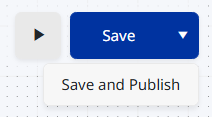
Click the drop-down arrow beside Save, and then select Save and Publish.
-
-
To return to the Batch Type Creation screen, click the Back to Batch Type Settings link.
-
Once back in the Batch Type screen, confirm all selections, and then click the "Create Batch Type" button to save the full configuration.
2. Extract Data from a Document
This part of the process steps you through processing a document with the Batch Type you just created.
-
In the New Batch screen, select the batch you just created that contains the AI data extraction as the document type.
You will only see this batch type if you assigned yourself as a user or group to the batch type when you created it above.
-
Upload or scan a document.
-
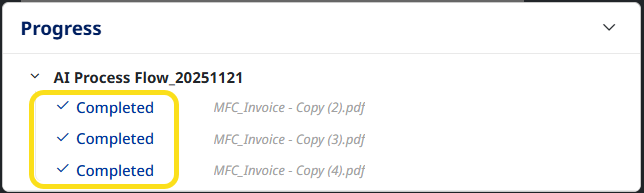
After the document is scanned, click the Completed link under the successfully uploaded document.
-
If there are required batch fields configured, specify a value.
If two or more document types are created within the batch type, ensure you select the AI Data Extraction document type.
-
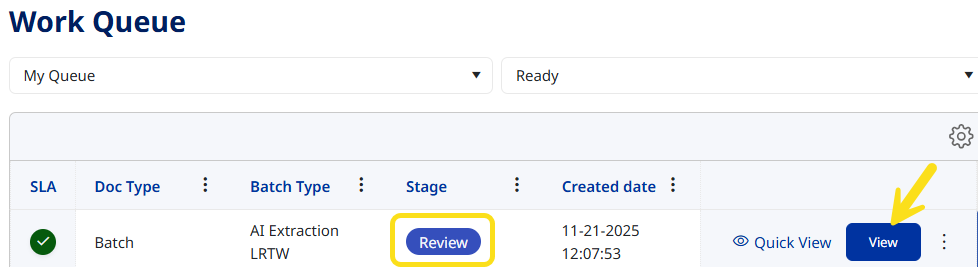
Click Submit. By doing this, the Process Flow will move the Batch's stage from "New" to "Review".
-
Open the Work Queue screen and locate the batch you just submitted. Click View.
-
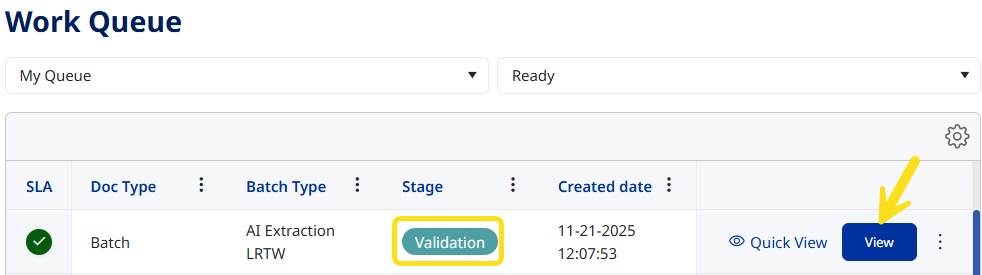
Review the contents of the batch and click Submit. By doing this, the Process Flow will move the Batch's stage from "Review" to "Validation".
-
Within the Work Queue look for the batch you just reviewed. Click View.
-
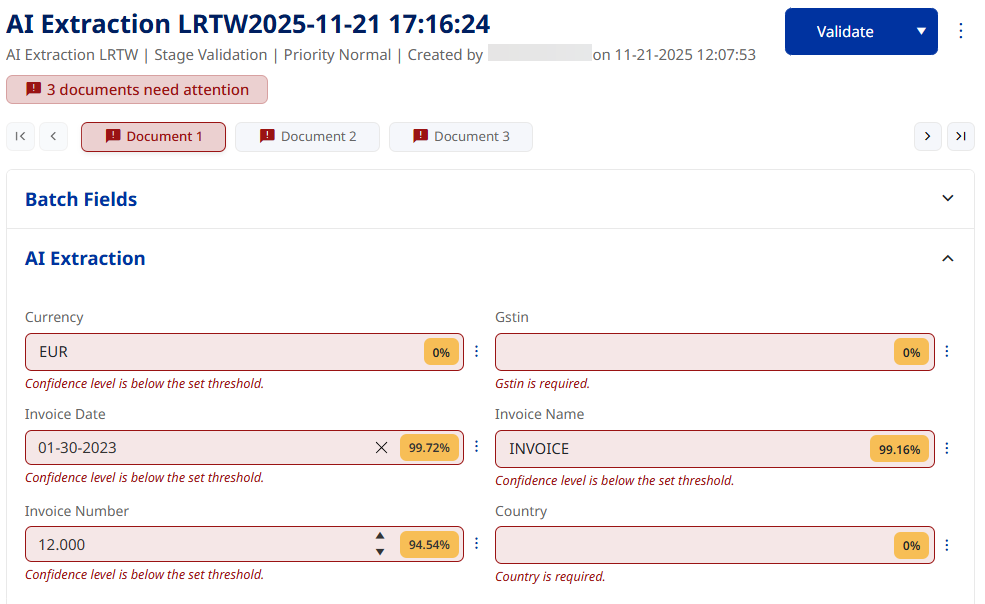
In this screen, the extracted data are displayed. You can:
-
If the fields are red and the value displayed is incorrect, delete them and type or select a new value. Once a field is corrected, it appears blue, rather than red.
-
If the fields are red and the value displayed is correct, click on the text field and press Enter from your keyboard.
-
Once all fields are validated, a pop-up appears confirming that you have validated all fields. Click Yes if you are ready to Submit.
If you submitted more than one document in the batch, you need to correct all documents before you can proceed.
-
-
If you added the optional Confirmation step to the Process Flow, locate the Confirmation step in the Work Queue, and proceed to submit the batch.
3. View Extracted Data
There are two methods you can use to view the data that was extracted from the documents in the batch. You can view the details directly in the RICOH IA UI, or you can view the documents in storage.
A. View from the Details UI
-
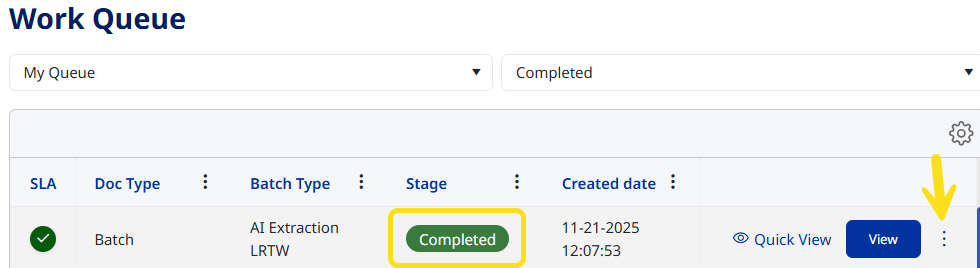
Open the Work Queue and chose Completed status to look for the batch. Once the batch is located, click the Ellipses icon and select Details.
-
Click Export CSVto extract the data to an external CSV file.
B. View from Storage
To view from storage, your Process Flow must include a Routing Task that will send the documents to either OneDrive, AWS S3 Bucket, or SFTP. This requires an integration setup first. If you did not add a routing task in the steps above, you can edit the Batch Type and then test the batch again before confirming the results in your chosen storage destination.