Add an AI Model to the Library
Last Updated: Version R2510AI models must be created and configured within their respective platforms before you can add a model to RICOH IA. For instructions to configure the models, refer to the platform's documentation.
Two AI platforms are supported:
-
Natif AI
-
Azure AI
A best practice is to click Check for Updates prior to adding a model to the library or prior to editing a model entry in the library. The update allows RICOH IA to connect to the external platform to ensure it has the most up-to-date information.
You must Setup an Integration for either Natif AI or Azure AI before the associated models appear for configuration in the AI Model screen.
-
Click Settings.
-
Select AI Model Library.
-
Click Create New AI Model.
-
Enter a unique model name.
-
Select the Connector.
-
From the Type list, choose the process: Optical Character Recognition, Document Separation, Document Classification, or Data Extraction
- From the Model list, choose a model once the list loads.
The model details are gathered and listed on the screen. You can then review the fields that comprise the selected model to ensure you have chosen the correct one.
-
If you are creating a data extraction model for OCR, see below for Key-Value Pairs configuration.
-
Click Create AI Model to proceed.
The AI model is now available to use within a Process Flow.
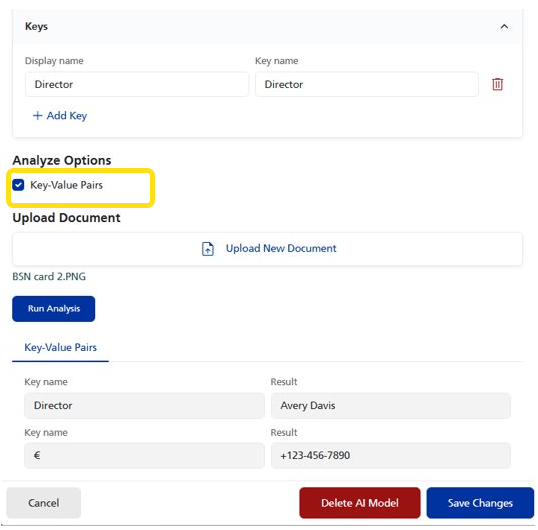
Key Value Pairs for OCR Models
When configuring an AI Model for Optical Character Recognition, you can enable the Key-Value Pairs option to upload a sample document to RICOH IA for analysis. The analysis, RICOH IA returns a list of all key-value-pairs extracted by the AI model. You can then create a field and map keys to those fields.