

Process Flow Example: Improve Image Quality
Last Updated: Version R2601The customer wants to handle removal of blank pages, despeckle, deskew, and auto rotate pages to enhance image quality during processing. Rather than have an Operator manually perform these operations during a scan, the Designer can add a Task to a Process Flow to perform the cleanup automatically.
Before starting this configuration, prepare a sample document that you will need to upload to identify the zone on the document where the barcode will be read.
-
Choose Settings.
-
Choose Batch Type Library.
-
Click Create New Batch Type. Follow the instructions in Create a New Batch Type to complete the fields in the screen.
-
Click the Gear icon
 to open the Process Flow screen.
 - Drag and drop a Task from the Steps to the first + symbol on the flow. This task will start the new batch.
You must add a new batch task to the Process flow. The Cleanup Action must follow a New Batch task in the Process Flow.
-
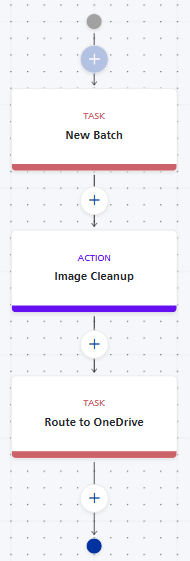 Drag and drop an Action from the Steps to the + symbol after the New Batch Task.
 -
Enter a name for this Action, for example "Image Cleanup".
-
From the Type list, select Image Enhancement.
-
From the Image Cleanup Type list, select one clean up type:
-
Auto Rotate Pages
-
Deskew
-
Blank Page Removal
-
Despeckle
-
-
To add another cleanup type, click + Image Cleanup. Repeat this step to add each one of the cleanup types, if necessary.
-
Click OK to save the action and add it to the Process Flow.
-
Complete the Process Flow by adding a Business Rule or Connector to route the documents, apply business rules, etc.. Click Save when finished. In this example, a confirmation task was added to the workflow to allow an Operator to verify the scanned documents, and a routing task was added to route the documents to a storage destination.
This action step will be applied when the Batch Type is run by an Operator.
From the Operator perspective, the image cleanup is applied immediately after the documents are scanned.