

Process Flow: Task
Last Updated: Version R2510A Task can define one of the following within a Process Flow:
-
New Batch: Allows the Operator to begin a new batch. The procedure to create a New Batch task is described below.
-
Import: Automates the import of documents from a specified OneDrive destination, based on preset triggers. For example, if a new file is added to a specified folder, or if an existing file is modified in the specified folder. Import from a MS Outlook email folder can also be configured.
-
Review: Creates a review task that requires an Operator to confirm pre-selected Document Options before the Process Flow can proceed. A review may require Assembly, Classification, Delete, Duplicate Page, Edit Batch Fields, Reassign, Reject, Scanning, or Upload document options, as set by the Designer. The Designer can assign this task to any specific user(s) or user group(s).
-
Validation: Creates a validation task that requires an Operator to validate one or more Document Options before the flow can proceed. Document Options may include Delete, Duplicate Page, Edit Batch Fields, Reassign, or Reject.
-
Confirmation: Creates a final set of eyes on the batch, typically prior to routing. This task type does not require validation of Document Options.
-
Routing: Establishes the destination for the scanned batch files. Options available are pre-defined Microsoft OneDrive, AWS Buckets, or SFTP locations. A routing task also allows the Designer to determine the File Types that can be routed to these destinations. File Types can be PDF, TIFF, CSV, JSON or XML.
New Batch Task
-
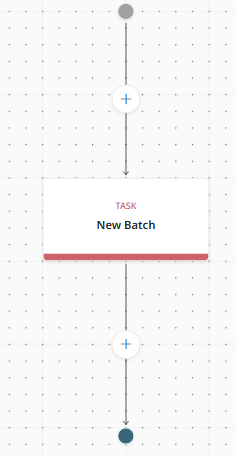 Drag and drop the Task from the Steps to a + symbol location on the Process Flow.
 -
Enter a name for this task.
-
From the Type list, select New Batch.
-
Optional: enable the Offline Scanning and Upload option if high-volume document scanning with near real-time review capabilities is required. Refer to Offline Batch Type for details.
-
Choose the appropriate document options: Assembly, Classification, Delete, Duplicate Page, Edit Batch Fields, Reject, Scanning, and Upload. Any checked options will be available to the Operator performing this task.
-
To assign this Batch task to a particular user or group of users, click +Add User or Group and make your selections.
On the New Batch screen, this task will only appear to users that have been assigned to it.
-
If implemented Separation or Classification using an AI model, select a model from both lists under the AI Create Batch settings. The models that appear in these lists have already been added to Add an AI Model to the Library
-
Click OK to save the task.