

Process Flow Example: Invoice Data Check
Last Updated: Version R2510The customer wants to scan invoices and determine if the invoice date exceeded 90 days from the current date. The process flow required connecting to an AI model to identify the invoice date field, and then applied a business rule to perform the date check. Conditions were created to handle the document differently if the current date exceeds or is within the 90 day period.
Prior to configuring this process flow, the Designer configured the following:
-
An AI model integration that identifies the invoice date field. See Setup an Integration for details.
-
Three business rules:
-
A rule to calculate the difference between two dates
-
A rule to handle the invoice if the date is over 90 days
-
A rule to handle the invoice if the date is less than 90 days
-
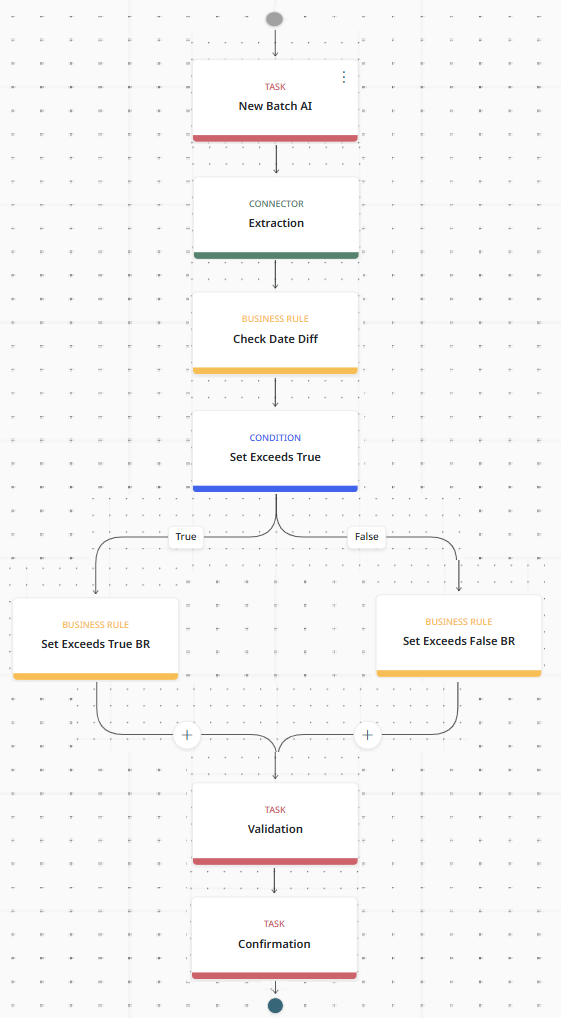
From the end-user viewpoint, this is the workflow:
-
Start the New Batch.
-
Scan the documents or upload the documents.
-
Once processed, complete any required Batch Fields.
-
View the scans and confirm the page and scan quality.
-
Submit the batch. The submitted batch appears as two separate entries in the Work Queue because both a Validation and a Confirmation Task were included in the process flow.
-
Confirmation task: A user must review the batch details and then Confirm or Reject the batch.
-
Validation task: A user must review and complete/confirm required fields for each document that were identified by the AI model. The details in both the confirmation and validation tasks must match before the batch can be submitted without errors. In the validation stage, confidence levels for all fields derived from the AI model are indicated, and the Operator can review all flagged fields and make changes to any fields prior to validation.