

Process Flow Example: Import Documents from Microsoft Outlook Email Folder
Last Updated: Version R2510Follow these steps to create a task within a process flow that automates the import of document attachments sent to a specified Microsoft Outlook Email inbox.
-
Start a new process flow from within the New Batch Type screen.
-
Drag and drop the Task from the Steps to a + symbol location on the Process Flow.
-
Enter a name for this task.
-
From the Type list, select New Batch.
-
Enter a name for the task.
-
From the Type list, select Import.
-
From the Destination list, choose a pre-configured Outlook integration. See Microsoft Outlook for details.
-
Click Select Folder to choose the specific folder in the email integration that emails must be sent to for this Batch to trigger. Ricoh recommends creating a dedicated email folder that will only be used for RICOH IA purposes.
-
Set the maximum number of files to process in a single batch. By default, the selection is 1.
-
Configure a file mask. The mask is useful if you want to import only a certain file type. For example, if you want to only import PDF files, you can create a mask that ignores TIFF and Word documents.
-
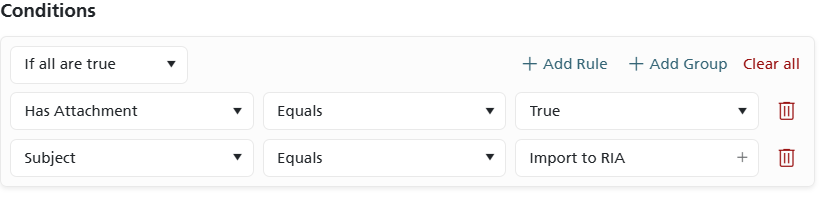
Add conditions that must be met for this import task to trigger. For example, choose Has Attachment - Equals - True, and add a second condition for Subject - Equals - Import to RIA. With these conditions only email sent to the specified email folder that have the subject "Import to RIA" AND have an attachment will trigger this task.
- Click OK to save the Task.
-
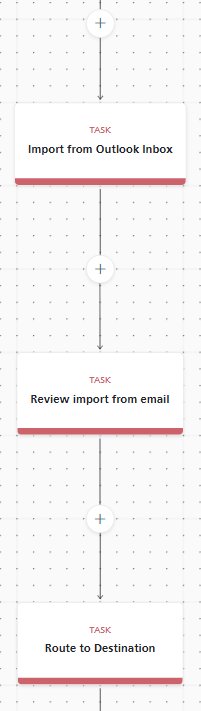
Add a second Task to the Process Flow after the Import task. This task should be a Review task that allows an Operator to verify the documents imported from the email. Set the type to Review, choose the Document Options, and then assign the task to a specific user or group.
-
Click OK to save the Second Task.
-
Add a third task to the Process Flow that routes the scanned documents to a destination. The resulting flow will look like the flow shown to the right.
From the end-user viewpoint, this is the workflow:
-
An email is received in the specified email folder AND it contains a PDF attachment AND it has the subject "Import to RIA".
If the email contains other file formats such as TIFF or Word attachments, those are ignored. If the email contains a PDF attachment, but the subject is NOT Import to RIA, the entire email is ignored and this process flow is not triggered.
-
The Import from Outlook Inbox task is triggered and the attached document is imported to RICOH IA.
-
The Review import from email task is triggered and appears in the Work Queue. A user assigned to this Batch Type can View and Submit the document after confirming the Document Options.
-
The Route to destination task is triggered. The document is routed to the configured destination.
-
The flow is complete.