

Process Flow: Action
Last Updated: Version R2510Add an Action to the Process Flow to split the batch based on the number of documents scanned or uploaded. For example, if an Operator attempts to upload 20 documents in a single batch, you could add an Action to the process that will automatically split the batch into two smaller batches (10 documents per batch), or even four smaller batches (5 documents per batch).
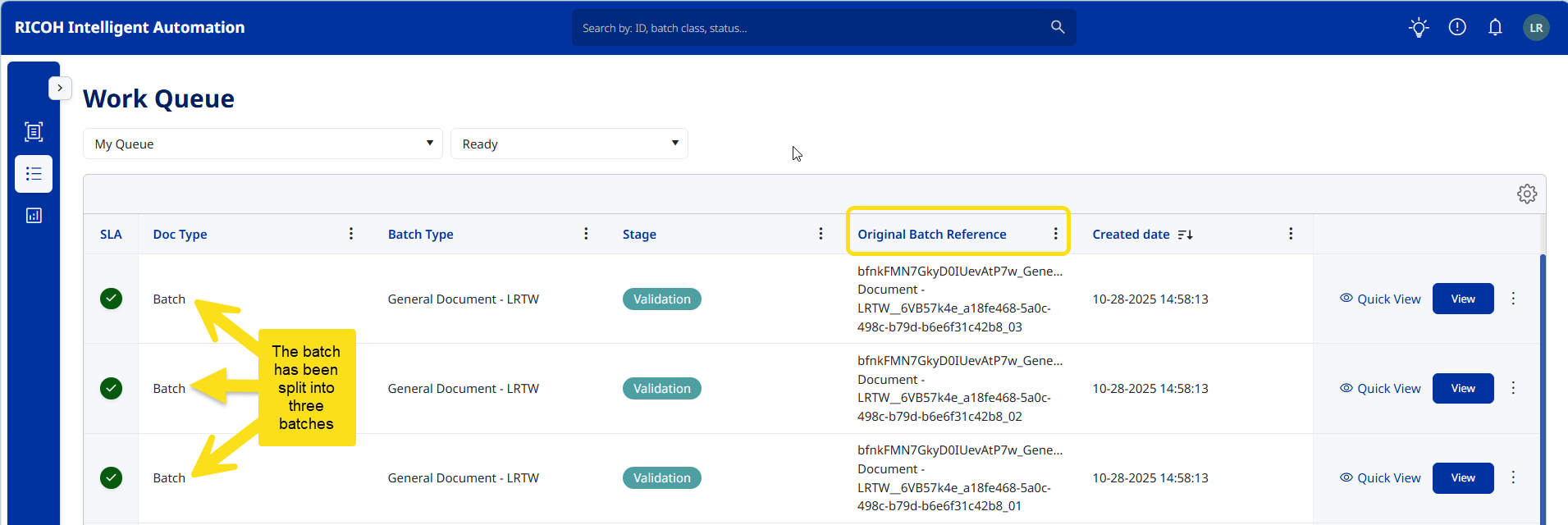
Even though the Operator created a single batch, after the Action step is performed, the original batch will not appear in the work queue list. Instead, only the newly cloned batches will continue independently to the next steps, without any dependency on each other. On the Work Queue screen, newly created batches will include an additional column named "Original Batch Reference," which contains the value: OrginalBatchID_OriginalBatchName_X (format (with x: 01, 02, 03...)).
The Action must follow a New Batch task in the Process Flow. The instructions below follow this rule.
-
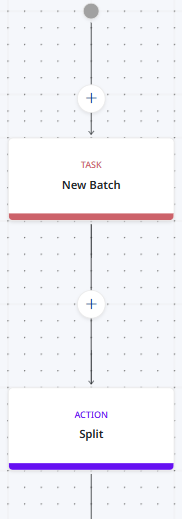 Drag and drop a Task from the Steps to a + symbol location on the Process Flow and then from the Type list, select New Batch. See Process Flow: Task for other Task fields.
 -
Drag and drop an Action from the Steps to + symbol after the New Batch Task.
-
Enter a name for this Action.
-
From the Type list, select Split Batch.
-
In the Number of documents per batch field, use the up/down arrows to choose the number of documents that a batch will be split into when this batch type is submitted.
-
Click OK to save the action.
For example, if the Operator selects this Batch Type, and uploads 6 documents to the batch, the Operator can proceed to verify fields and submit the batch. However, the batch is then split based on the 'Number of documents per batch field' setting. If the Designer set the split number to 2, the batch will be split into three separate batches within the Work Queue (2 documents in each batch) to satisfy the split requirement. Each individual batch must be processed separately at this point in the flow.
What the Operator will see:
-
The Operators starts a new batch using this Batch Type and adds more documents than the split number set (in this example, more than 2 to force the split) and then submits the batch.
-
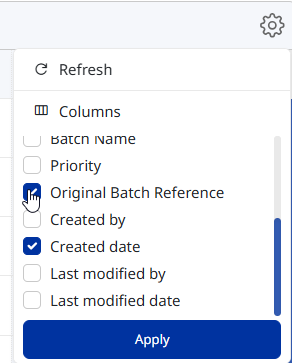
In the Work Queue, click on the Settings gear and select Columns. Enable the Original Batch Reference Column (shown below).
-
Sort the Work Queue to locate the split batch. As shown in the screen capture below, there are three items now in the work queue, all with an identical creation date/time. The Original Batch Reference column indicates the original batch from which the split batches were generated.
If the Operator submitted a batch containing 14 documents, and the batch was set to split at 3, the result will be five separate batches in the Work Queue. The first four batches will contain 3 documents, and the fifth batch will contain 2 documents.